
Skip to product information

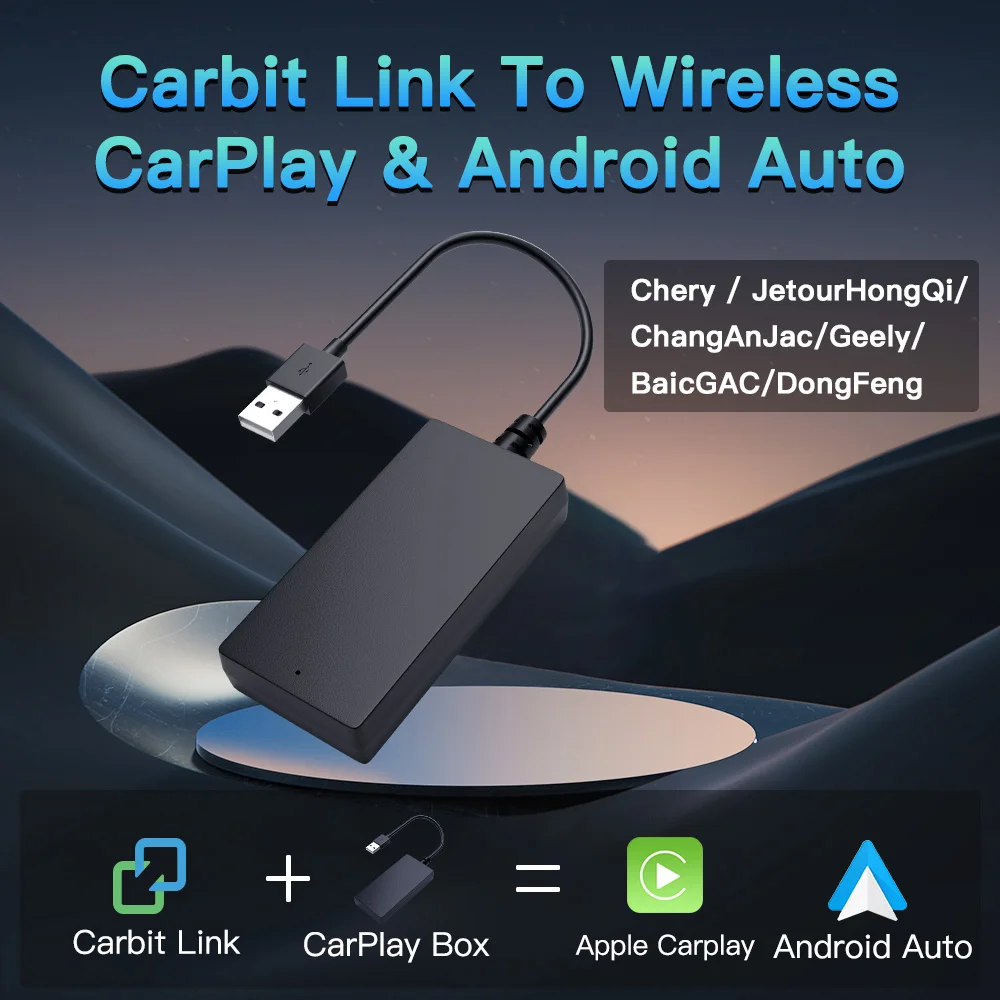
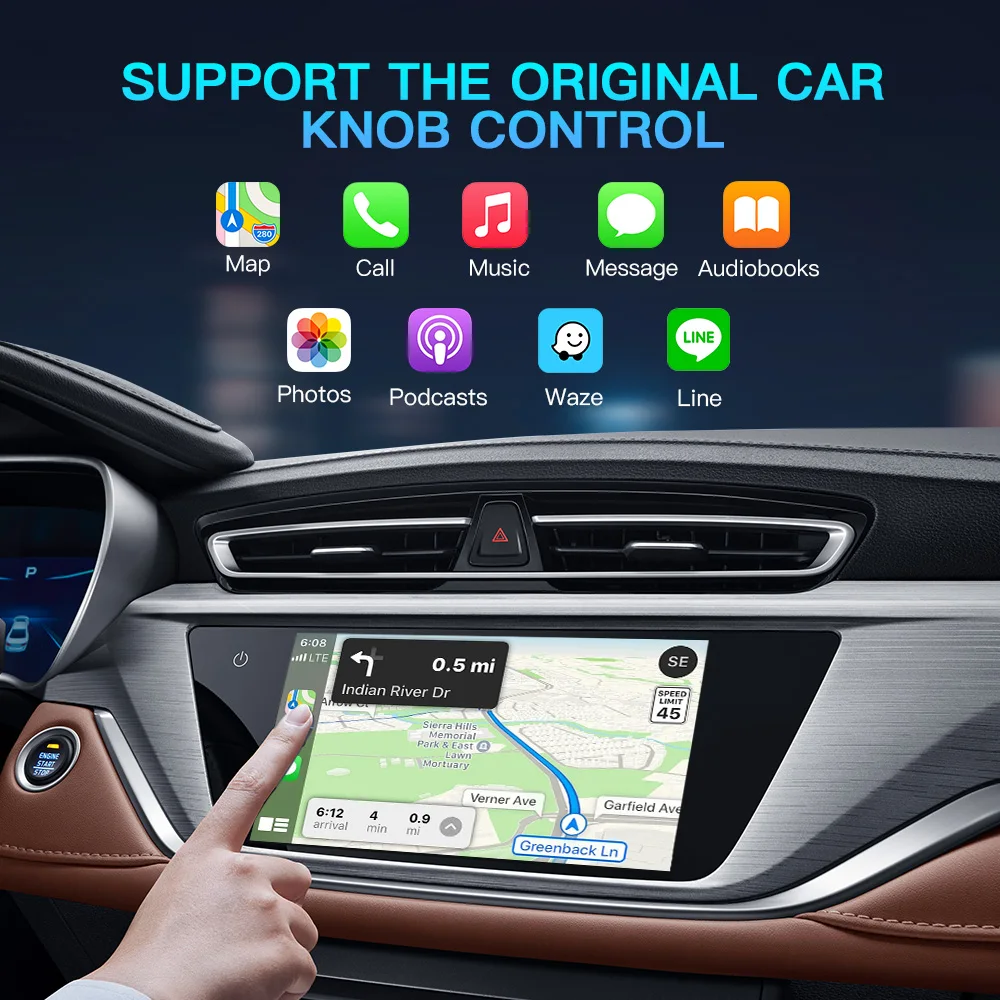

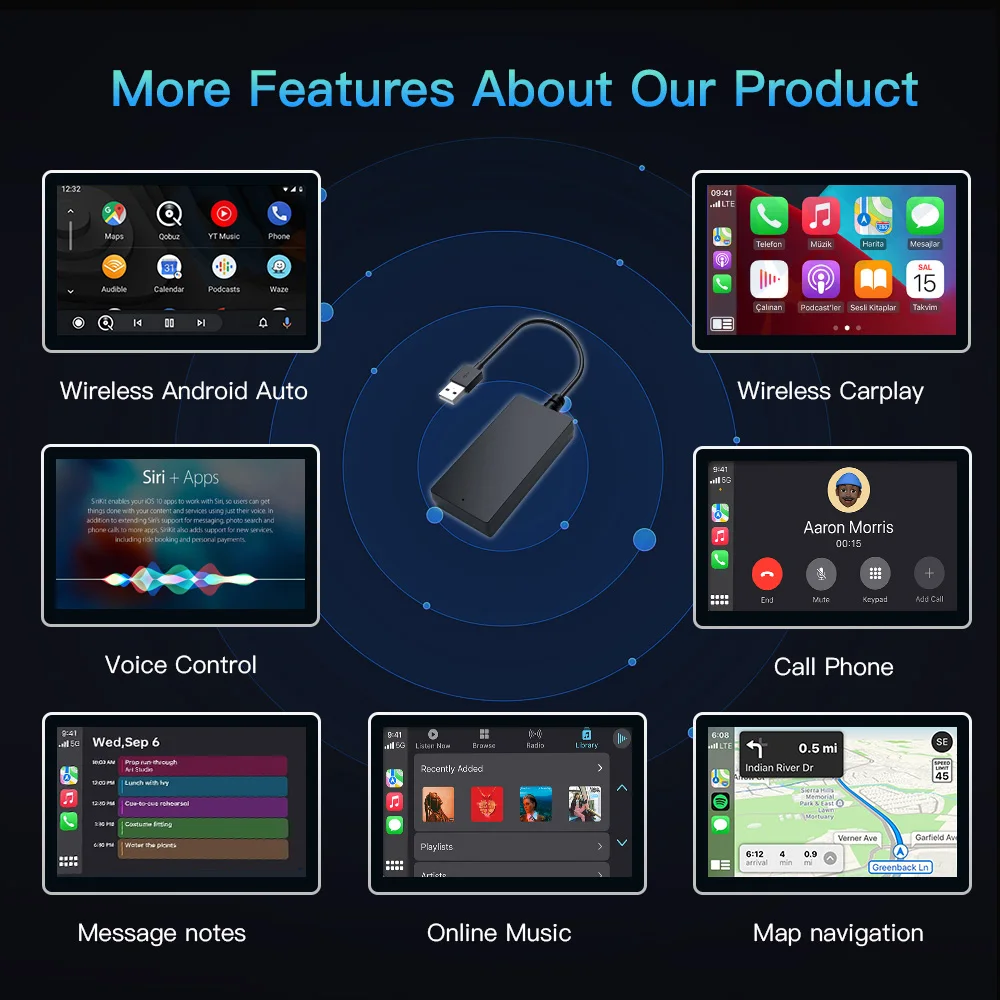
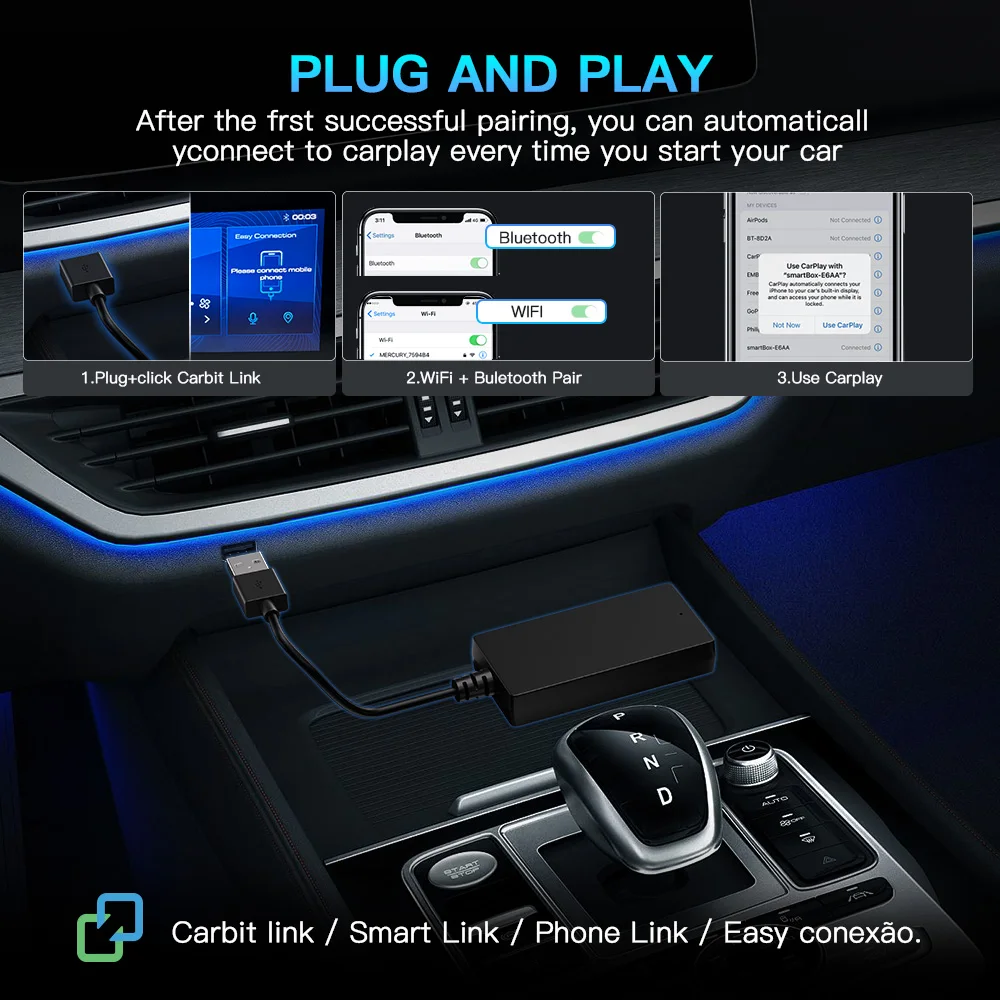

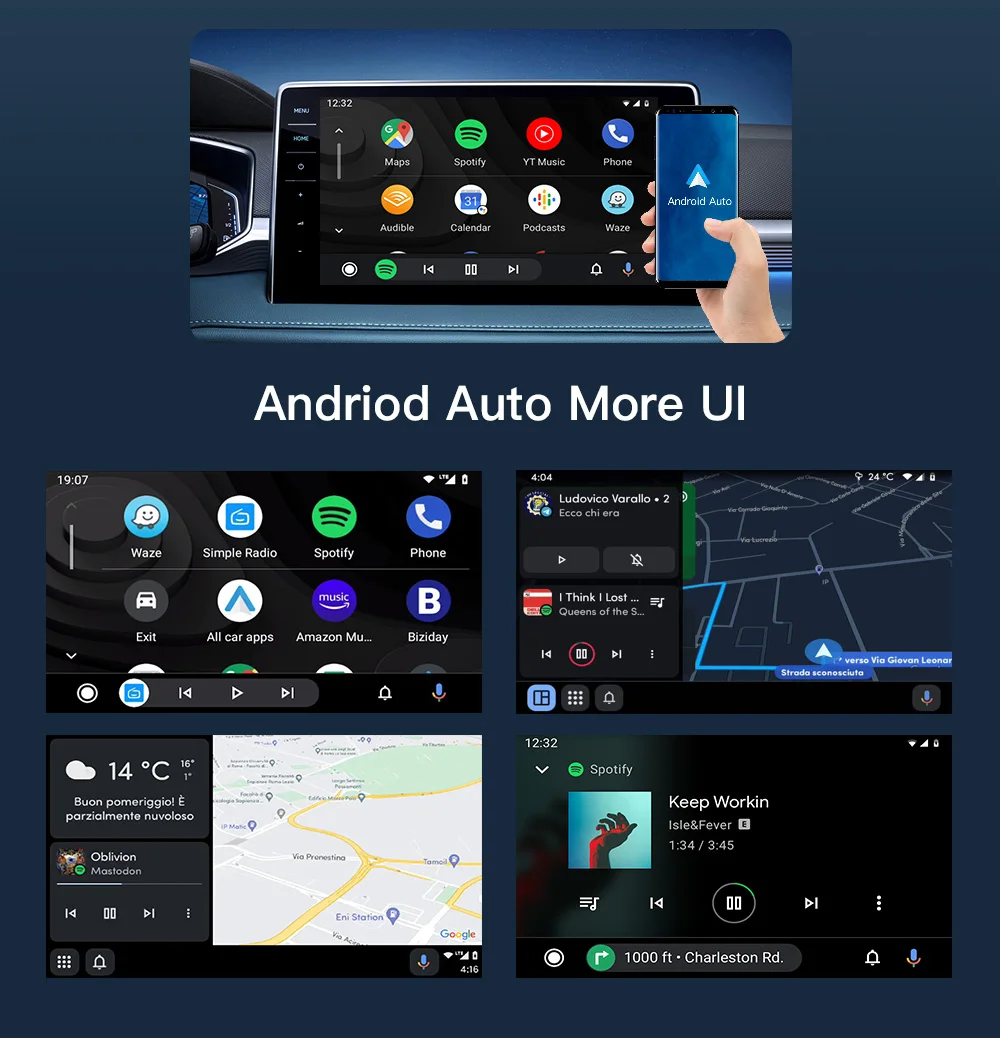
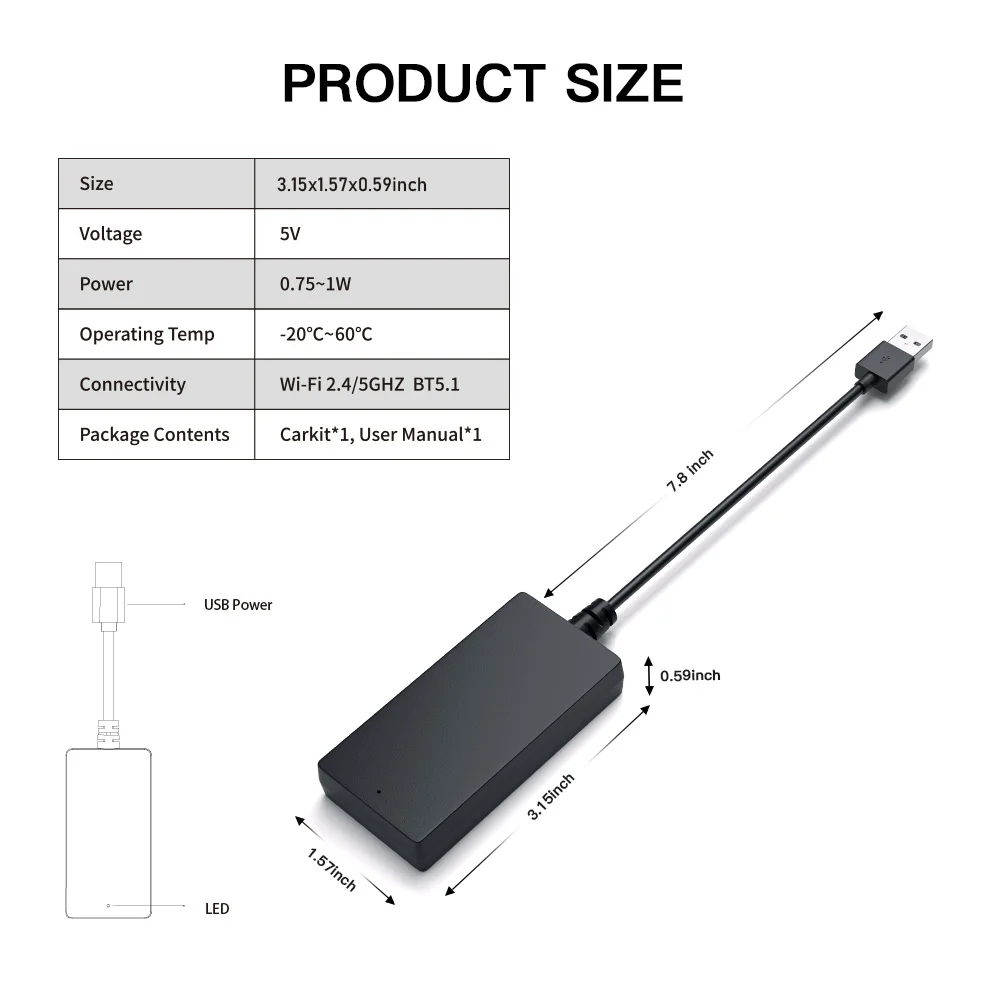




Carbitlink Smartlink Easy Connection to Wireless CarPlay Android Auto For Chery Jetour X70
$191.57
Please kindly note
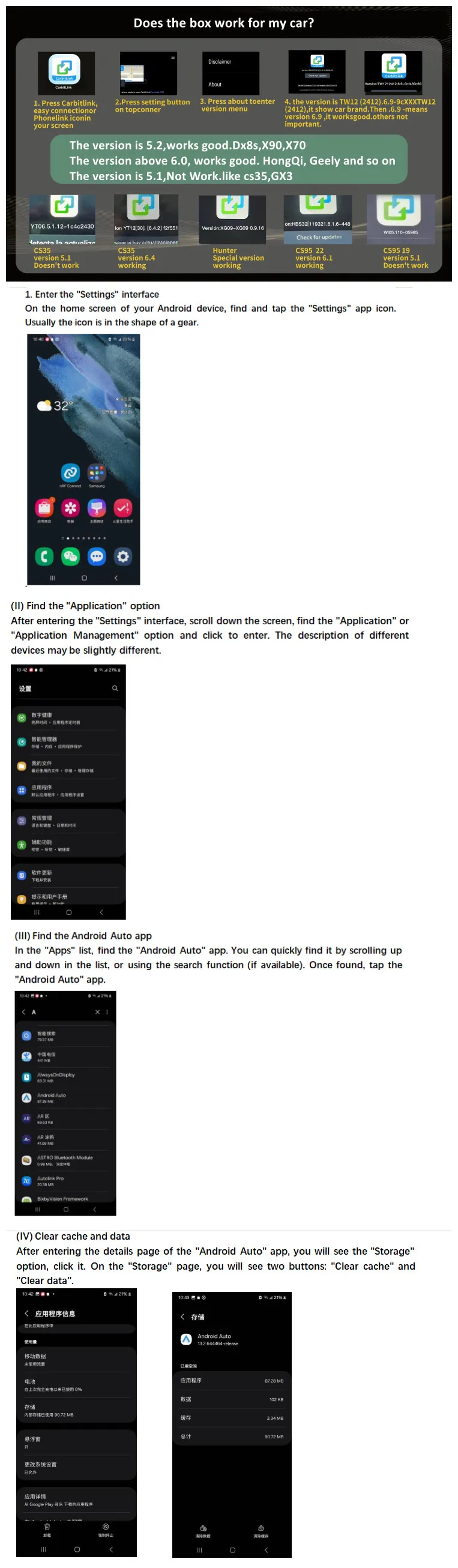
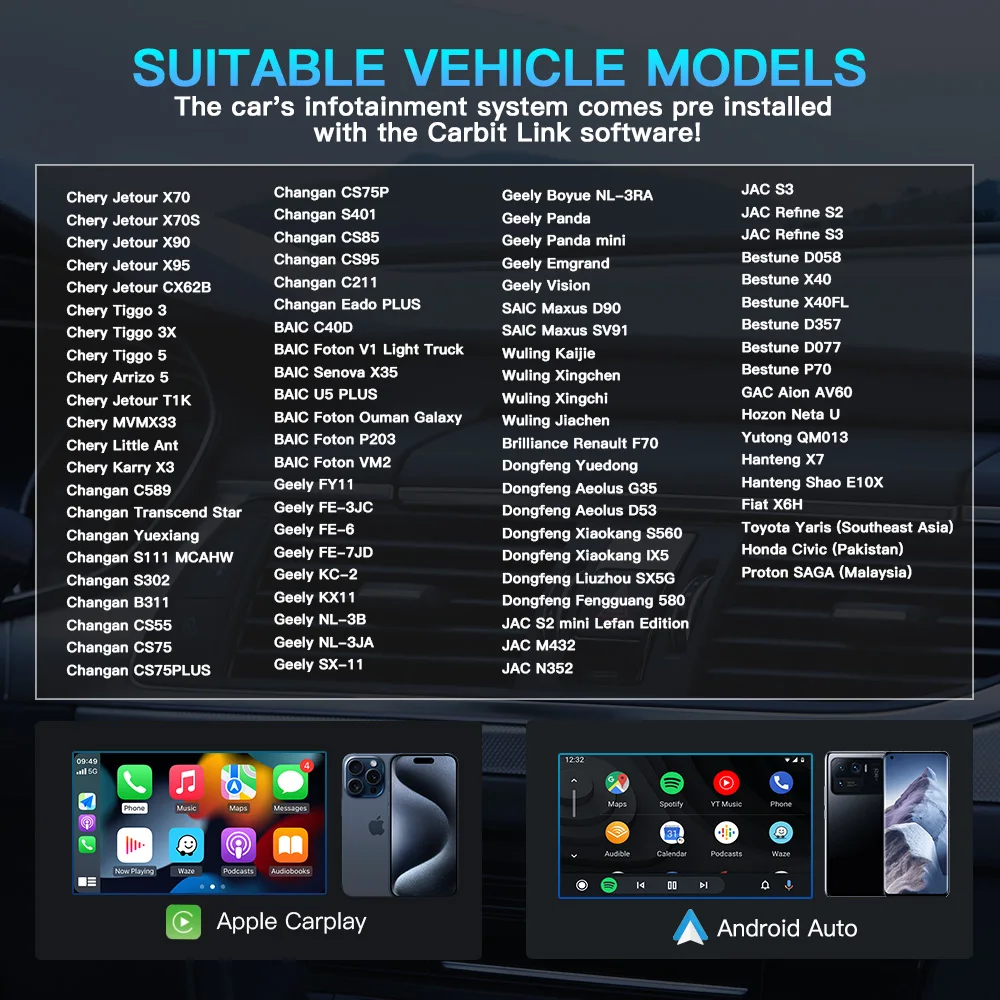
1. This current product is Carbit/Smart Link/Phone Link/Easy Connect with CarPlay and Android Auto, which ONLY supports: Chinese Made Car with Carbit/Smart Link/Phone Link/Easy Connect function.
2. The principle of using this product is to update the wired Carbit Link/Smart Link/Phone Link/Easy Connection of the original car screen to achieve Wireless CarPlay and Android Auto function.
Compatible with these Jetour cars:
X70 2020-2024
X70 Plus 2020-2024
X90 Plus 2021-2024
X90 Plus 2021-2024
X95 2021-2024
X95 Plus 2021-2024
Dashing 2023-2024
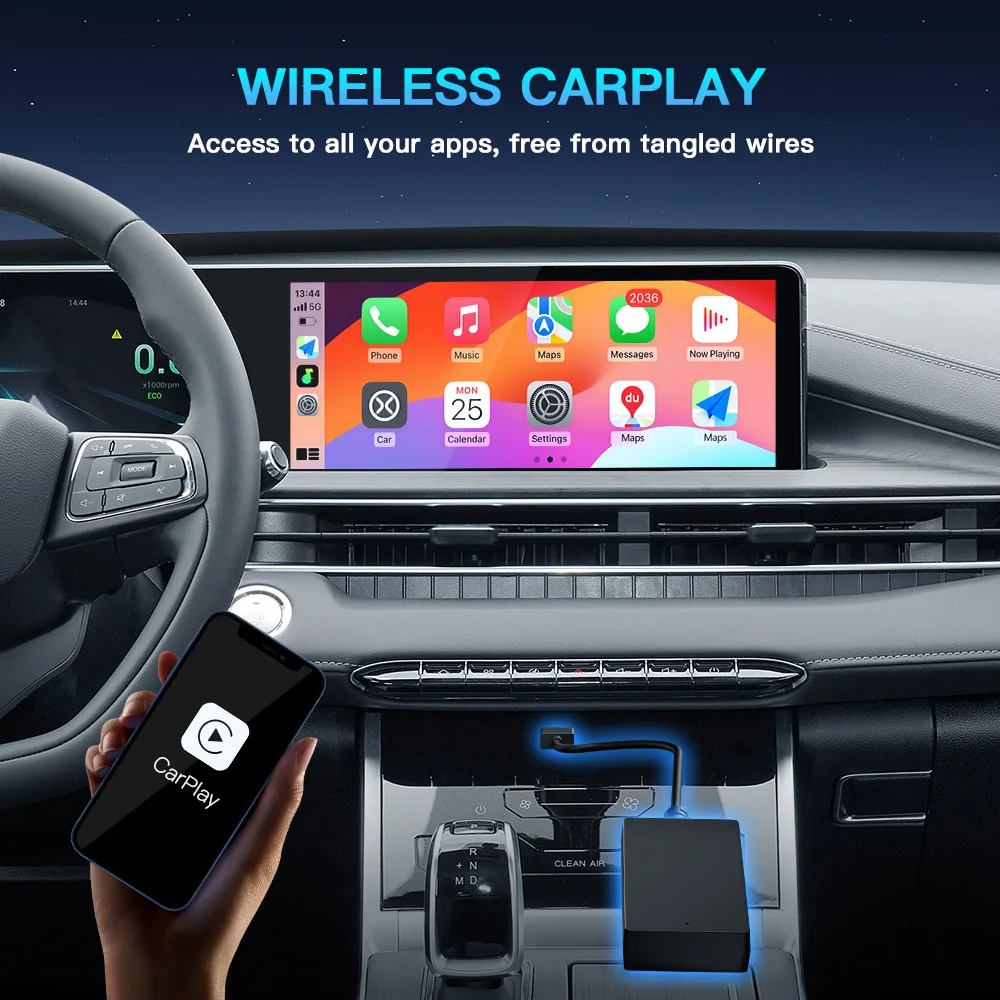
All China-made cars for the Chinese market are equipped with Carbit Link / Smart Link / Phone Link / Easy Connect This Carbitlink - Apple Carplay / Android Auto adapter allows you to activate the Carplay system and connect your Carplay-enabled iPhone to your standard car radio or activate Android Auto and connecting Android phones. After connecting the phone, you will be able to use navigation (Yandex Navigator (with Yandex.Plus subscription), 2GIS, Waze, Apple and Google maps), instant messengers (WhatsApp, Viber), listening to online music, podcasts on the screen standard radio.
Benefits of activating Apple CarPlay / Android Auto:
- AppStore/Play Store Certified Car multimedia apps for your car.
- Automatic connection
- Provides the convenience of using CarPlay/Android Auto
- Wireless connection, phone in your pocket or bag - not required
connection to the car every time
- Calls, SMS, contact list - always on the car radio screen
- Listen to music from your phone to the radio
- Installation of any Apple Carplay compatible apps from the App Store
Samsung mobile phones frequently disconnect and cannot connect to AA Other improvement measures
1. Check the application version: You can open the Google Play Store, search for "Android Auto", and if there is an update button, click it to update to ensure that you are using the latest version.
2. Check the permission settings: Make sure Android Auto has the necessary permissions. Go to the phone's "Settings" - find "Android Auto" - click "Permissions" and confirm that all permissions such as location, storage, and Bluetooth are enabled.
3. Reset related settings:
(1). Reset Bluetooth settings: If you are connecting to Android Auto via Bluetooth, click the "Settings" icon in the upper right corner of the phone, find the "Bluetooth" option, select "Reset Bluetooth", and then try pairing again.
(2). Check the automatic blocker function: The "automatic blocker" function of some Samsung models may affect Android Auto connection. Go to your phone's "Settings" - "Security & Privacy", find the "Auto Blocker" feature and turn it off, or make sure the "Maximum Restrictive" mode is turned off.
🚚 Shipping: Items ship within 1-3 business days.
🔧 Warranty: 1-year warranty included.
🔄 Returns: 30-day return policy.
Images are for reference only.